OAuth
The OAuth endpoint lets users authenticate with a third-party provider (Google or Auth0) and receive a signed WordPress JWT - no WordPress password required. The plugin exchanges the provider-issued authorization code or ID token for a matching WordPress user, and returns a JWT that can be used in all subsequent API calls.
Supported providers:
- Google - via authorization code (server-side flow) or ID token (Sign In With Google)
- Auth0 - via authorization code
Prerequisites
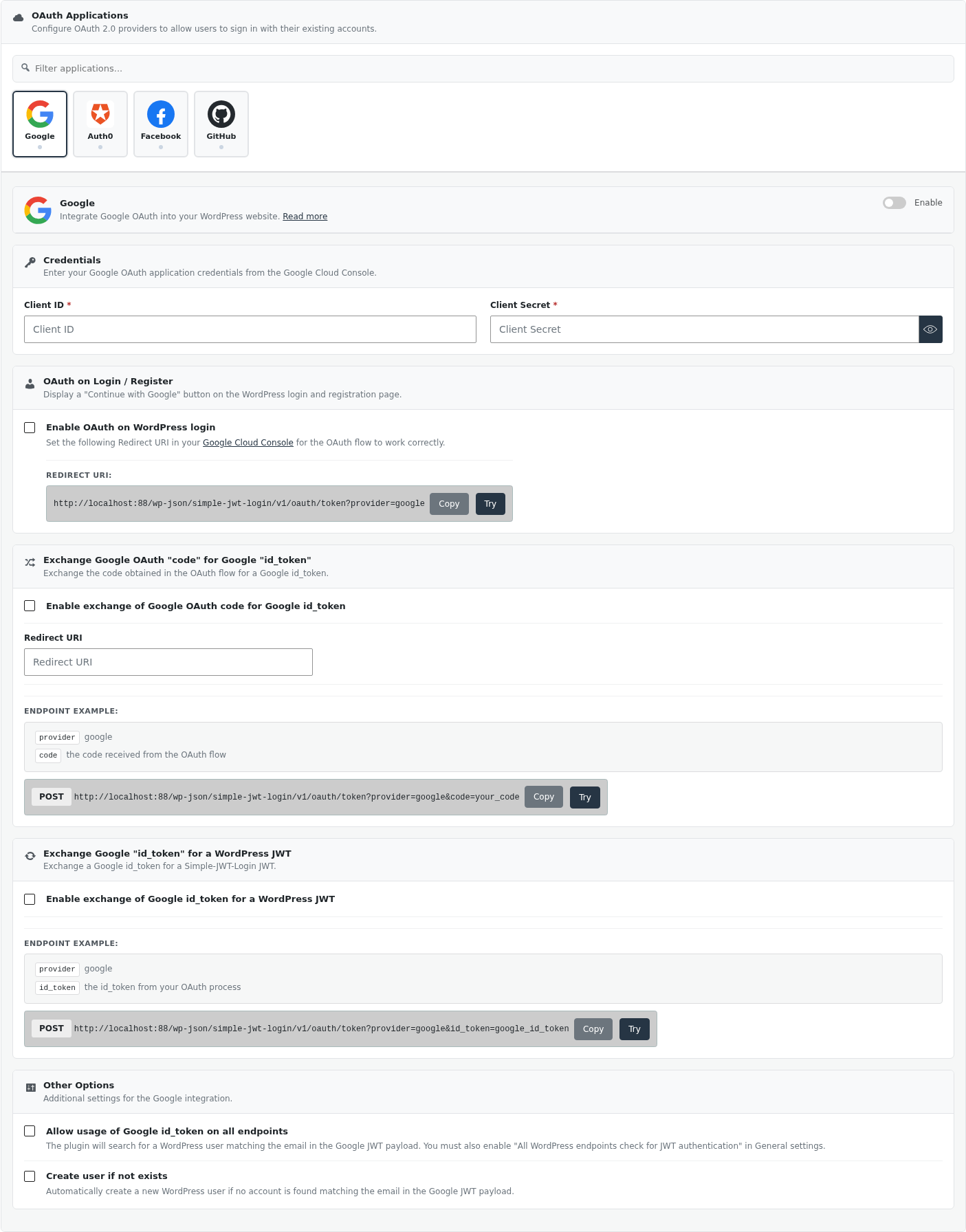
- Enable OAuth for the desired provider under Settings → Simple JWT Login → Applications.
- Configure the provider's Client ID, Client Secret, and (for the code exchange flow) Redirect URI to match what you registered in the provider's developer console.
- Optionally enable "Register user if not found" to automatically create a WordPress account when the OAuth email does not match any existing user.
Explore and test this endpoint using the interactive API reference →
Endpoint
METHODS: GET or POST
ENDPOINT: /simple-jwt-login/v1/oauth/token
URL Example (GET): https://{{yoursite}}/?rest_route=/simple-jwt-login/v1/oauth/token&provider=google&code={{AUTHORIZATION_CODE}}
Parameters
| Parameter | Type | Description |
|---|---|---|
provider | required string | OAuth provider slug. Accepted values: google, auth0. |
code | conditional string | Authorization code returned by the provider's OAuth consent screen. Required for the code exchange flow. |
id_token | conditional string | Google ID token from Sign In With Google. Google provider only. Either code or id_token must be present for Google. |
AUTH_CODE | optional string | Auth Code from the "Auth codes" section. Required only when "Authentication Requires Auth Code" is enabled. |
Parameters can be sent as query params (GET) or in the request body (POST).
Request (POST)
{
  "provider": "google",
  "code": "4/0AfJohXmX...",
  "AUTH_CODE": "MySecretAuthCode"
}
Or using a Google ID token instead of a code:
{
  "provider": "google",
  "id_token": "eyJhbGci..."
}
Responses
200
{
  "success": true,
  "data": {
    "jwt": "eyJhbGciOiJIUzI1NiIsInR5cCI6IkpXVCJ9...",
    "user": {
      "ID": 1,
      "user_login": "myuser",
      "user_email": "myuser@example.com",
      "display_name": "My User"
    }
  }
}
400 - Missing parameters
{
  "success": false,
  "data": {
    "message": "The code or id_token parameter is missing from request.",
    "errorCode": 71
  }
}
401 - Invalid code or token
{
  "success": false,
  "data": {
    "message": "The code you provided is invalid.",
    "errorCode": 72
  }
}
403 - Provider not enabled
{
  "success": false,
  "data": {
    "message": "This Oauth provider is not available.",
    "errorCode": 70
  }
}
404 - User not found
{
  "success": false,
  "data": {
    "message": "User not found.",
    "errorCode": 74
  }
}
Examples
SHELL - Google code exchange
curl -X POST 'https://simplejwtlogin.com/?rest_route=/simple-jwt-login/v1/oauth/token' \
  -H "Content-Type: application/json" \
  -d '{"provider":"google","code":"4/0AfJohXmX..."}'
SHELL - Google ID token (Sign In With Google)
curl -X POST 'https://simplejwtlogin.com/?rest_route=/simple-jwt-login/v1/oauth/token' \
  -H "Content-Type: application/json" \
  -d '{"provider":"google","id_token":"eyJhbGci..."}'
JavaScript - Google code exchange (POST preferred)
const response = await fetch(
  'https://simplejwtlogin.com/wp-json/simple-jwt-login/v1/oauth/token',
  {
    method: 'POST',
    headers: { 'Content-Type': 'application/json' },
    body: JSON.stringify({ provider: 'google', code: authorizationCode }),
  }
);
const { data } = await response.json();
const jwt = data.jwt;
SHELL - Auth0 code exchange
curl -X POST 'https://simplejwtlogin.com/?rest_route=/simple-jwt-login/v1/oauth/token' \
  -H "Content-Type: application/json" \
  -d '{"provider":"auth0","code":"AUTH0_AUTHORIZATION_CODE"}'
Features
Google - two authentication paths

Code exchange (server-side flow)
The standard OAuth 2.0 authorization-code flow. Your front-end redirects the user to Google's consent screen with your Client ID and Redirect URI. Google returns a short-lived code to your redirect URI, which you pass to this endpoint. The plugin exchanges it for a Google ID token, extracts the email, and issues a WordPress JWT.
Requires: Client ID, Client Secret, and Redirect URI configured in plugin settings.
ID token (Sign In With Google)
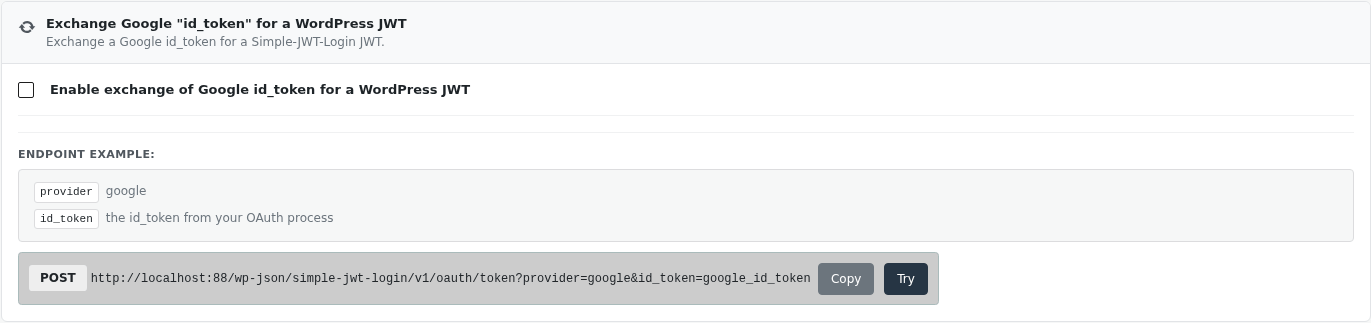
The Google Identity Services library running in the browser can produce an id_token directly (no server-side code exchange needed). Pass the token to this endpoint as id_token. The plugin validates it against Google's tokeninfo endpoint and issues a WordPress JWT.
Requires: only the Client ID (no secret needed).
Auth0 - authorization code flow
Your front-end redirects the user to Auth0's Universal Login. Auth0 returns an authorization code to your callback URL. Pass that code to this endpoint. The plugin exchanges it for an Auth0 token, extracts the user's email, and issues a WordPress JWT.
Requires: Client ID, Client Secret, and Redirect URI configured in plugin settings.
Auto-register on first login

Enable "Register user if not found" in the provider settings. When the OAuth email address does not match any existing WordPress user, the plugin automatically creates a new account with the default role configured in Register Settings and returns a JWT for that new user.
When this option is disabled and no matching user exists, the endpoint returns a 404 error.
Use POST to keep tokens out of logs
The GET method appends the authorization code and other parameters to the URL, which may appear in server access logs and browser history. Use POST (with parameters in the JSON body) for production flows to avoid leaking short-lived codes.
FAQ
Can I use OAuth without enabling JWT authentication?
No. The OAuth endpoint is part of the Simple JWT Login plugin. It requires the plugin's JWT configuration (secret key, algorithm, payload options) to be set up, since the response always includes a signed WordPress JWT.
What happens if the OAuth code has already been used?
Authorization codes are single-use. Sending a previously redeemed code returns a 401 error from the provider. Direct the user through the OAuth consent screen again to obtain a fresh code.
Do I need to set up a Redirect URI for the ID token flow?
No. When using id_token with Google Sign In With Google, no redirect URI or client secret is needed. Only the Client ID is required in the plugin settings.