Audit Logs
Audit Logs give you a detailed, searchable record of authentication events on your site. Every login attempt, registration, password reset, OAuth flow, 2FA challenge, API key action, and settings change can be captured and stored in your WordPress database.
Audit logging is disabled by default. Enable it in Settings → Simple JWT Login → Audit Logs → Config.
Configuration
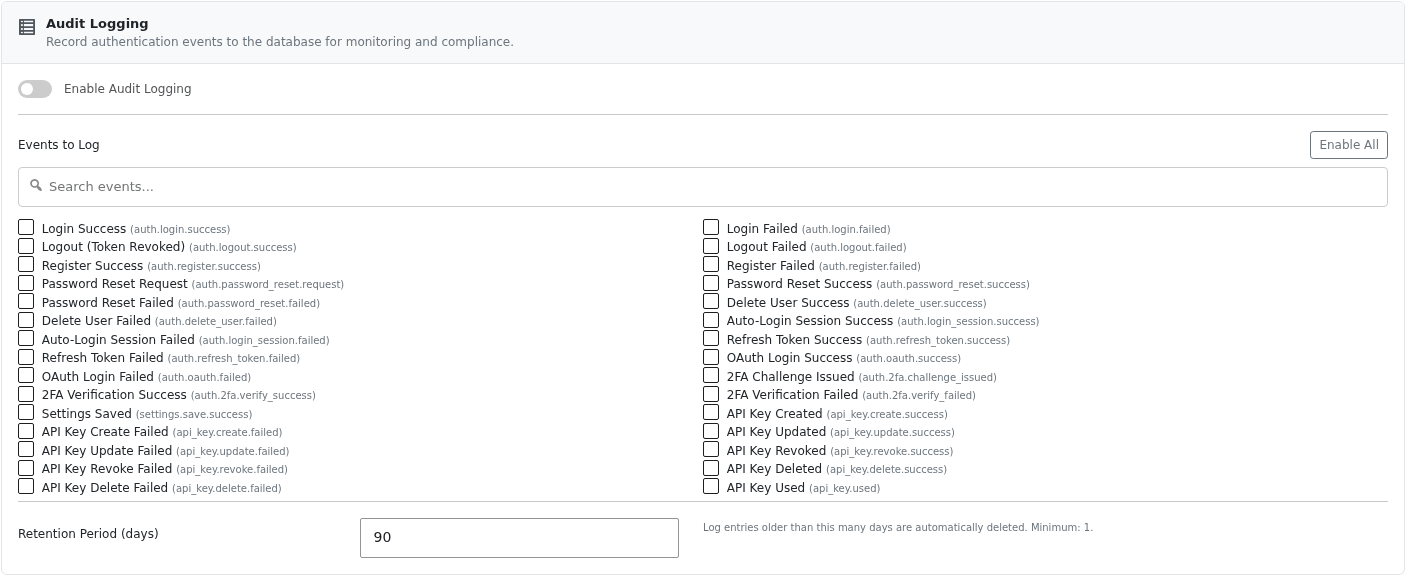
Enable Audit Logging
Toggle the Enable Audit Logging switch at the top of the Audit Logs configuration page.
Events to Log
Choose which events to capture. You can enable all events at once using the Enable All button, or pick individual events using the checkboxes. Use the search box to filter the list.
The full list of trackable events:
Authentication events
| Event key | Label | Description |
|---|---|---|
auth.login.success | Login Success | A JWT was successfully generated for a user |
auth.login.failed | Login Failed | Authentication failed (wrong credentials, disabled, etc.) |
auth.logout.success | Logout (Token Revoked) | A JWT was successfully revoked |
auth.logout.failed | Logout Failed | Token revocation failed |
auth.register.success | Register Success | A new WordPress user was created via the API |
auth.register.failed | Register Failed | User registration failed |
auth.password_reset.request | Password Reset Request | A password reset code was requested |
auth.password_reset.success | Password Reset Success | Password successfully changed |
auth.password_reset.failed | Password Reset Failed | Password change failed |
auth.delete_user.success | Delete User Success | A user account was deleted via the API |
auth.delete_user.failed | Delete User Failed | User deletion failed |
auth.login_session.success | Auto-Login Session Success | Auto-login via JWT completed successfully |
auth.login_session.failed | Auto-Login Session Failed | Auto-login via JWT failed |
auth.refresh_token.success | Refresh Token Success | A JWT was successfully refreshed |
auth.refresh_token.failed | Refresh Token Failed | Token refresh failed |
auth.oauth.success | OAuth Login Success | OAuth authentication completed successfully |
auth.oauth.failed | OAuth Login Failed | OAuth authentication failed |
Two-Factor Authentication events
| Event key | Label | Description |
|---|---|---|
auth.2fa.challenge_issued | 2FA Challenge Issued | A 2FA challenge was sent to the user |
auth.2fa.verify_success | 2FA Verification Success | 2FA code verified successfully |
auth.2fa.verify_failed | 2FA Verification Failed | 2FA code verification failed |
Settings events
| Event key | Label | Description |
|---|---|---|
settings.save.success | Settings Saved | Plugin settings were saved by an admin |
API Key events
| Event key | Label | Description |
|---|---|---|
api_key.create.success | API Key Created | A new API key was created |
api_key.create.failed | API Key Create Failed | API key creation failed |
api_key.update.success | API Key Updated | An API key was updated |
api_key.update.failed | API Key Update Failed | API key update failed |
api_key.revoke.success | API Key Revoked | An API key was revoked |
api_key.revoke.failed | API Key Revoke Failed | API key revocation failed |
api_key.delete.success | API Key Deleted | An API key was deleted |
api_key.delete.failed | API Key Delete Failed | API key deletion failed |
api_key.used | API Key Used | A request was authenticated using an API key |
Retention Period
Set how many days to keep log entries. Entries older than this threshold are automatically purged by a scheduled WordPress cron job. The minimum value is 1 day.
Default: 90 days.
For compliance use cases (GDPR, SOC 2, etc.), set the retention period to match your data-retention policy. For high-traffic sites, a shorter window keeps the database table from growing too large.
Viewing Log Entries
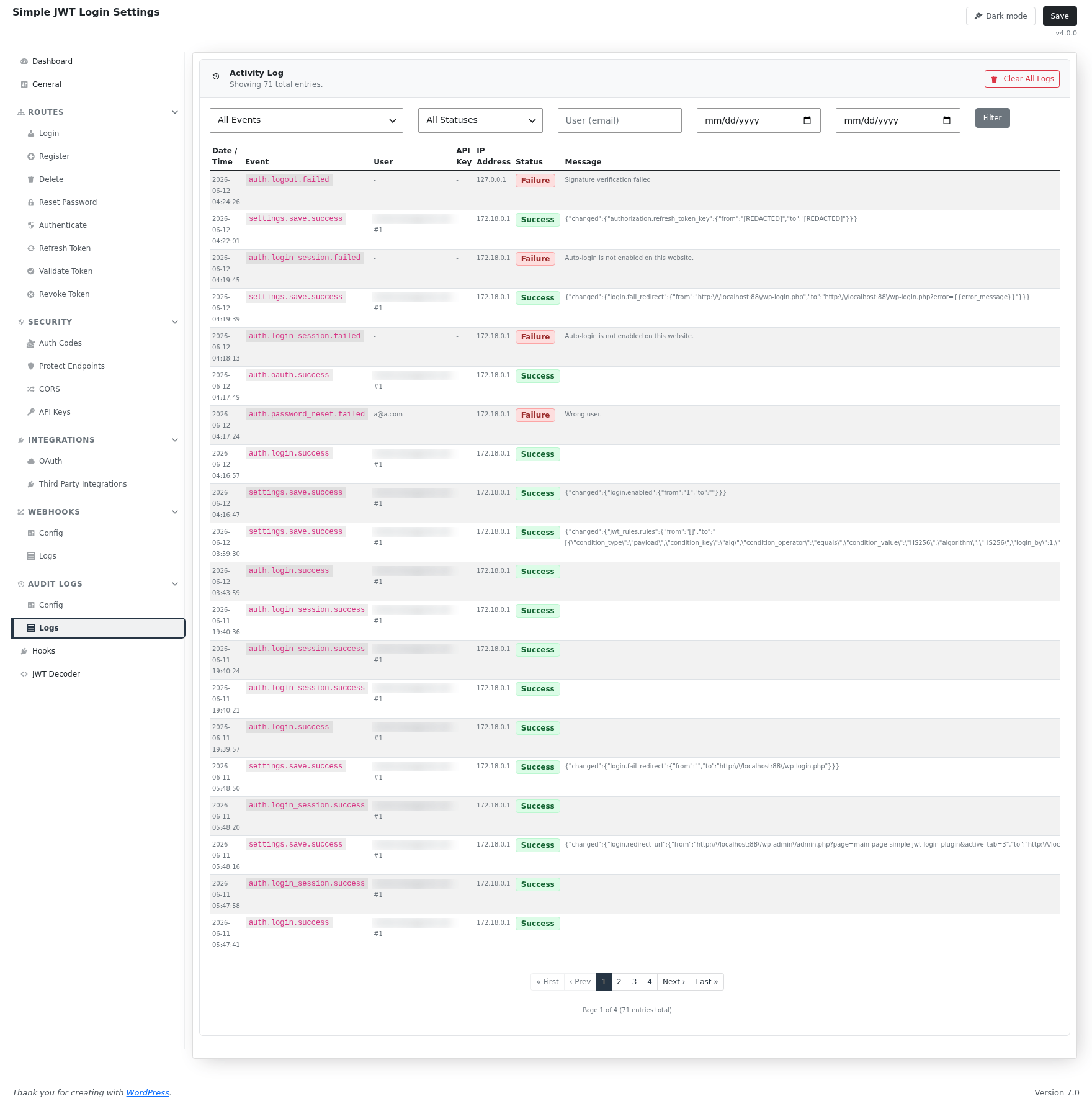
Go to Settings → Simple JWT Login → Audit Logs → Logs to view the stored entries.
Each entry records:
- Event - the event key (e.g.
auth.login.success) - User ID - the WordPress user involved (where applicable)
- User Email - the email of the user involved
- Status -
successorfailed - Details - additional context (e.g. changed setting keys)
- IP Address - the client IP that triggered the event
- Timestamp - when the event occurred
Logging Performance
Audit log writes are dispatched after the API response is sent to the client - they never block or delay the response your app receives.
The plugin uses PHP's fastcgi_finish_request() to flush the response first, then write the log entry in the same PHP process. If that function is unavailable (see table below), the log write happens synchronously before the response is returned. Database writes are fast, so this rarely causes noticeable latency.
| Server environment | Async logging |
|---|---|
| nginx + PHP-FPM (standard nginx setup) | Yes - response flushed before log is written |
Apache + PHP-FPM (mod_proxy_fcgi) | Yes - response flushed before log is written |
| Apache + mod_php | No - log write blocks the response |
| LiteSpeed / OpenLiteSpeed | Depends on version - generally no |
Use Cases
- Security monitoring - track failed login attempts and unusual activity patterns
- Compliance - demonstrate an audit trail for authentication events
- Debugging - reproduce exact event sequences when troubleshooting user-reported issues
- Change tracking - see exactly which settings were modified and when via
settings.save.success